Wednesday, May 27, 2015

New PowerPoint templates added to PresentationPro Library!

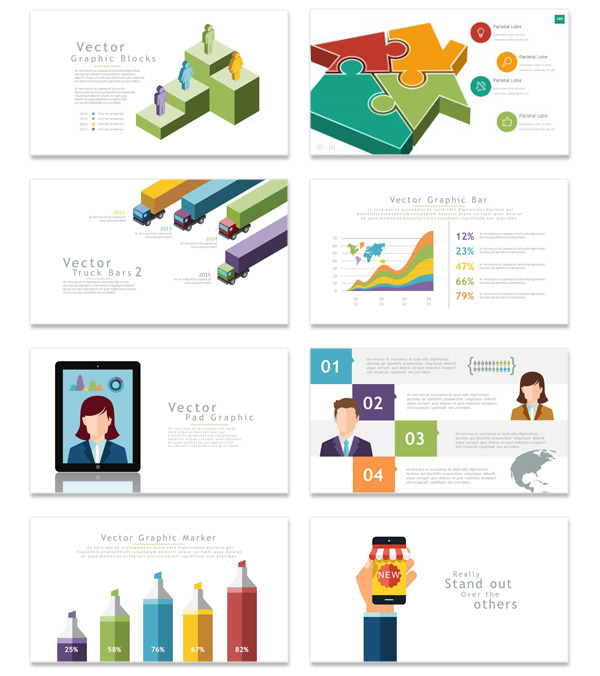
New PowerPoint templates added today!

Over 50 new PowerPoint templates and Animated templates added at to PresentationPro designs library.
New designs include:
Widescreen templates
Animated templates
Business templates
Abstract templates
Nature templates
Education templates


PowerPoint templates from PresentationPro

DESIGNS SALE

For a limited time:
Get PowerDesigns 5-in-1 Package 50% OFF!


use promo code: POWER50
to get all of the designs (over 30,000) in 5 products for only $49.

PowerDesigns 5-in-1 Package Includes:
PowerPoint Templates
Animated Templates

PowerPoint Graphics
PowerPoint Icons
PowerPoint Slides


Purchase Now


Tuesday, May 5, 2015

Tuesday, April 28, 2015

Easily create your own PowerPoint diagrams in seconds with Flevy Plugin!


Easily create the diagrams you need with Flevy Tools!

  • 12 types of business diagrams
  • Choose the number of items in your diagrams
  • Very easy to use
  • 3 FREE presentations included! Additional diagrams and helpful tips for building better business presentations! A $108 value FREE
    learn more
  • No programming skills needed
  • Works in PowerPoint 2003, 2007, 2010 & 2013 on PC & Mac

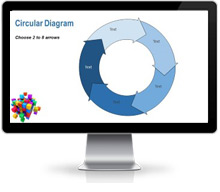
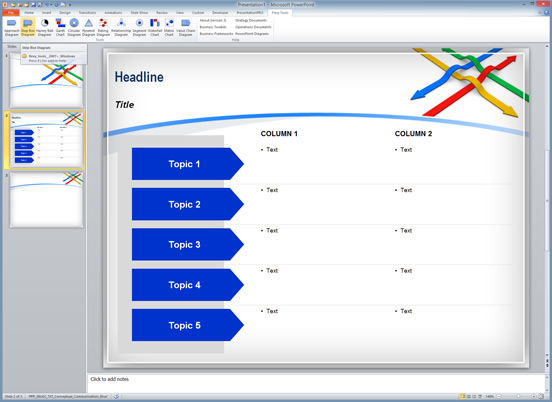
Flevy tools sample diagram
Flevy PowerPoint Tools gives you instant access to 12 different types of diagrams to insert into your PowerPoint presentations. Each diagram comes in multiple sizes and options so you can create the perfect diagram unique to your needs.

More Info

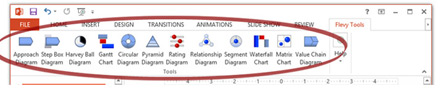
Flevy Tools PowerPoint ribbon. Easily create your own diagrams in PowerPoint.

Don´t worry about trying to find a diagram that exactly fits your information. Simply create it yourself with this easy to use tool!


Now you can create diagrams in just 2 simple steps!
1. Select the type of diagram layout in the Flevy PowerPoint tools Office Ribbon.
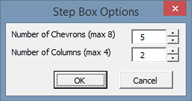
Flevy tools business diagrams step 1

2. Select the type of diagram layout in the Flevy PowerPoint tools Office Ribbon.
Flevy tools business diagrams step 2

You´re Done!
Flevy tools business diagrams step 3

A Step Box diagram is just one option in Flevy PowerPoint Tools.
Other diagram options include...


Approach/Chevron Diagram
Harvey Ball Diagram
Gantt Chart
Circular Diagram
Pyramid Diagram
Rating Diagram
Relationship Diagram
Segment Diagram
Waterfall Chart
Matrix Chart
Value Chain Diagram


purchase power presentations Buy Flevy PowerPoint tools!
Easily create your own diagrams in PowerPoint.
ON SALE: Save 33%  $149 only $99
includes 3 presentations!
$149 $99

Wednesday, April 15, 2015

Easily add quizzes in PowerPoint with Tracking! Save 25%.

Easily Add Quizzes in PowerPoint with PowerQuizPoint!PresentationPro add quizzes to powerpoint with powerquizpoint.
It is now easier than ever to create quizzes in PowerPoint.
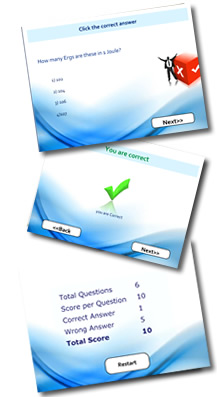
PowerQuizPoint Quiz Maker lets you insert and save interactive quiz slides directly into any of your PowerPoint presentations and then publish the PPT to Flash. More Info

With PowerQuizPoint, anyone can now easily create rich-media interactive quizzes in PowerPoint and convert them to a Flash format for online training. PowerQuizPoint is a revolutionary plugin for PowerPoint which utilizes the PowerPoint to Flash engine PowerFlashPoint to publish the quizzes to Flash. The results of your quiz questions will automatically be emailed to you when it is completed!


Features & Benefits
  • Easily insert multiple choice questions in PowerPoint
  • Publish quizzes to flash format
  • Customizable slides for correct / incorrect answers
  • Complete control over slide Fonts & Size
  • Complete control over Animation Effects
  • Control the number of Qns/Answers/Navigation
  • Options to add attractive Quiz Templates
  • Store questions in bank for reuse
  • Quiz scoring
  • Receive quiz results via email
  • No programming skills needed
  • works in PowerPoint 2003, 2007, 2010 and 2013
PowerQuizPoint is on sale! Save 25%.    $99 only $74.25


Thursday, December 30, 2010

Essential FREE tools for PowerPoint users!

Here is a short list of Free software and plugins related to PowerPoint to make your life easier. You’ll wonder how you lived without some of these amazing FREE programs for so long. These are all written by Microsoft and are completely free. There are a LOT more where these came from, these are some that I suspect you may not know about yet.


pptPlex

http://www.officelabs.com/projects/pptPlex/Pages/default.aspx

This tool enables you to zoom into and out of your PowerPoint slides, as well as jump between non-sequential ones. Once it's installed, launch PowerPoint and view the video tutorial to find out how to use it.


Microsoft Office Compatibility Pack

http://support.microsoft.com/kb/923505

This tool enables users of Office 2000, XP and 2003 to open, edit and save documents in the new 2007 formats in Word, Excel and PowerPoint. Install it and the functionality is immediately available in Office's File Open and Save As dialogue boxes.


Microsoft Office Viewers

Website

Don't have access to a copy of Office on another computer? You can now install special Viewers for Microsoft Word, Excel, Access, Visio or PowerPoint documents, enabling you to open, look at and print your work without having to download Office.


Microsoft Producer For PowerPoint

http://www.microsoft.com/downloads/en/details.aspx?FamilyId=1B3C76D5-FC75-4F99-94BC-784919468E73&displaylang=en

This free-to-use add-on for PowerPoint makes it incredibly simple to create web-based presentations from existing PowerPoint slides. You can also use it in association with other media sources, such as video, audio and images.

You'll need to use the Microsoft Office Animation Runtime plug-in unless you're running Office 2007 – a handy download link is provided on the Microsoft Producer download page.


Ribbon Hero

http://www.officelabs.com/ribbonhero

The Ribbon interface was a great step forward for Office 2007 and 2010, but if you want to get the most of it, install Ribbon Hero.

It monitors what you do in Office and makes suggestions as to which features you should learn about that could help you do your work more efficiently. It also helps you learn about the Ribbon interface using games and tasks that can be played with your friends and colleagues.


A more comprehensive list can be found here that has a much longer list of 60 fantastic free software downloads essential to any PC user.

Read more: http://www.techradar.com/news/software/applications/60-best-free-pc-software-downloads-from-microsoft-914749#ixzz19cqeQver

Monday, November 22, 2010

PowerDESIGNS improved with NEW PowerSlides.

PowerDESIGNS Package now includes PowerSlides; Pre-built animated PowerPoint slides professionally designed to improve presentations.
The PowerDESIGNS Package is now better than ever. Make great presentations with 4 products (templates, graphics, icons and slides) including more than 20,000 designs.
To start, we have pulled our complete powerslide library of over 900 slides plus many new designs to create a new growing library of slide layouts anyone can use for any occasion.
To browse and search through the new PowerSLIDE layouts, click here

Monday, October 25, 2010

166 New PowerPoint templates and designs added October 2010

Every month, our professional designers add new PowerPoint templates and graphics to the PowerDESIGNS Package at presentationpro.com. PowerDesigns is the ultimate PowerPoint design package; keeping your presentations fresh and up-to-date with monthly content updates for PowerTEMPLATES, PowerGRAPHICS and PowerICONS. March's update focuses on new growth, people in business, concepts, design, puzzles and many individual requests from our customers.


51 New PowerPoint Templates

60 New PowerPoint Graphics
  • See ALL new PowerPoint Graphics


  • 55 New PowerPoint Icons

    Keep the requests and feedback coming! Each month, the content we update is based on selections by our artists as well as requests by our customers. Email us at templatesuggestions@presentationpro.com to let us know what you think about September’s update or give us suggestions for future additions to our PowerDESIGNS library (over 18,000 designs and still growing every month).

    Monday, October 18, 2010

    What's changed in PowerPoint templates and what are themes?

    So what is a PowerPoint template? What changed in PowerPoint 2007? When did Themes show up and how do I use them??? Joy Miller, a writer on the PowerPoint User Assistance team at Microsoft, has the answers and some useful demonstrations.

    "To create color-coordinated slides with matching fonts and backgrounds in your next PowerPoint 2007 presentation, you should understand the difference between PowerPoint 2003 and earlier design templates and PowerPoint 2007 themes.. ..I've noticed that there seems to be some misunderstanding among PowerPoint 2007 users about how to give presentations a designer-quality look..."

    Find the full article at (http://office.microsoft.com/en-us/help/office-hours-what-happened-to-powerpoint-design-templates-and-what-are-themes-HA010237110.aspx).

    Tuesday, September 21, 2010

    PDF to PowerPoint converter

    Displaying PDF content in PowerPoint just got easier!


    Benefits


    PDF to PowerPoint enables you to convert PDF files to PowerPoint (PPT) presentations.


    • Support Microsoft Office 2010,2007,2003

    • Convert encrypted PDF to PowerPoint

    • Preserve original text, images, tables, graphics, hyperlinks, layout and formatting

    • Support batch, partial and shortcut conversion mode


    learn more


    158 new PowerPoint templates and graphics added in September 2010

    158 New PowerPoint Templates Added September 2010

    Every month, our professional designers add new PowerPoint templates and graphics to the PowerDESIGNS Package at presentationpro.com. PowerDesigns is the ultimate PowerPoint design package; keeping your presentations fresh and up-to-date with monthly content updates for PowerTEMPLATES, PowerGRAPHICS and PowerICONS. March's update focuses on new growth, people in business, concepts, design, puzzles and many individual requests from our customers.

    40 New PowerPoint Templates

  • See ALL new PowerPoint Templates
  • 63 New PowerPoint Graphics

  • See ALL new PowerPoint Graphics
  • 55 New PowerPoint Icons

  • See ALL new PowerPoint Icons

  • Keep the requests and feedback coming! Each month, the content we update is based on selections by our artists as well as requests by our customers. Email us at templatesuggestions@presentationpro.com to let us know what you think about September’s update or give us suggestions for future additions to our PowerDESIGNS library (over 18,000 designs and still growing every month).

    Sunday, July 11, 2010

    Presenting with PowerPoint: 10 dos and don'ts

    Presenting with PowerPoint: 10 dos and don'ts: "Presenting with PowerPoint: 10 dos and don'ts"


    Cherie Kerr knows how PowerPoint can be both provocative and persuasive in a business meeting.

    She's also aware that precisely the opposite can occur.

    "It can be the very best friend you have," says the Santa Ana, Calif., public relations consultant. "But you have to use it right."

    Kerr's two-sided view of Microsoft's popular presentation and graphics program in Office Small Business mirrors a debate coursing through business and academia. While many embrace the values of PowerPoint as a potent business tool, there are others who contend that it's a drag on effective interaction — that it confuses, distorts and even strangles communication.
    But, as Kerr points out, any discussion of PowerPoint's merits and miscues merely illustrates the importance of using the program to best advantage. Here are 10 ways to use PowerPoint to help make your business look brilliant, not brainless. ...

    Friday, June 18, 2010

    Download Whats new this month PowerPoint Templates and PowerPoint Backgrounds

    June 2010 New PowerPoint templates includes widescreen formats and all new PowerPoint 2010 animated templates and PowerPoint 2010 widescreen animated templates.


    73 templates added
    Download new PowerPoint Templates added this month


    19 graphics added
    Download new PowerPoint Graphics added this month


    180 icons added
    Download new PowerPoint Icons added this month

    for more on the PowerDESIGNS online package and over 18,000 designs, click here

    Wednesday, June 16, 2010

    Free Microsoft Office Web Apps Available

    Microsoft launched its free Windows Live versions of Office Web Apps.

    The new service is currently available in English for Canada, Ireland, the United Kingdom and the United States. Canadians can access a French version too; a Spanish version is also available for the United States. Microsoft plans to expand the service to other locales and languages in "the coming months," according to the PowerPoint team blog.

    Office Web Apps are simplified versions of Word, Excel, PowerPoint and OneNote that run in supported Web browsers. These applications use the "Ribbon" user interface menu system that was first introduced in Office 2007, although the menu is far less extensive. For Windows systems, supported browsers include Internet Explorer 7 and 8 and Firefox 3.5. On the Mac operating system, Safari 4 is supported.

    Users need to sign up for a Windows Live password to access the service, but it's all free. The service can be accessed anywhere using a supported browser and an Internet connection at http://www.office.live.com. Smartphone users can view Word and PowerPoint files without additional software on most devices, according to Microsoft's announcement. Printing files in Word and PowerPoint Web Apps can be done right from the browser.

    read more from the original article here.

    PowerPoint 2010 Viewer released

    The new PPT viewer was resently released and I have taken the time to run a series of presentations built in different version of PowerPoint to test it. Here is what I have found...

    For starters, this viewer isn't like the previous versions; a light weight, quick download. The new PowerPoint 2010 viewer is 60MB! It also needs to be truly installed vs. the previous versions that could be run directly from a CDROM or USB drive. That is a significant down side for taking PowerPoint presentations with you and planning on playing them on any computer with out installing or needing admin rights. Aside from that, there is nothing but praise for the capabilities of what it can do. It handles ALL animations, transitions, trigger events, media, and everything I've thrown at it from all versions of PowerPoint (I tried PPT, PPTX, PPS, PPSX all from multiple versions and languages of PowerPoint). From what I have tested, it runs everything that the full application runs including password protected presentations. You can play and print slides, you just can't edit anything.

    You can download the viewer from Microsoft.com here.

    Friday, May 21, 2010

    Improve Your PowerPoint Presentations with Guy Kawasaki's 10/20/30 Rule

    Do PowerPoint presentations put you to sleep — or at least put your
    brain’s higher reasoning facilities to sleep? Sure, it can happen,
    especially during presentations which are especially bad.

    Earlier today, I told you about how some senior military
    leaders are starting to believe that PowerPoint is eating our brains
    .
    If you really must build a PowerPoint presentation, here’s one
    antidote.


    Internet
    guru Guy Kawasaki has long advocated something called the 10/20/30 Rule
    ,
    designed to encourage you to make smarter, sharper, more effective
    presentations. Here’s what you need to know:


    10 slides. Guy says this is the optimal number of
    slides because humans cant process more than ten concepts in a single
    sitting.


    20 minutes. The whole pitch should take no more than
    20 minutes. If you book an hour, that gives you nearly 40 minutes for
    questions.


    30-point font. That’s the smallest your text should
    appear anywhere in the deck. If you make the text smaller, you’re going
    to be tempted to just pour your whole narrative onto the slides and read
    from the deck — which is a fatal error which will cost you your
    audience’s respect and attention. [via ReadWrite]

    Deliver Better Presentations by Understanding PowerPoint's Top 3 Myths

    I don’t hate PowerPoint. I use it frequently, and the honest truth is
    that I actually like it quite a bit. But my caveat is that I believe
    I’m an excellent public speaker. I am a comfortable extemporaneous
    speaker, and I know how to use PowerPoint as a tool to enhance my
    presentation.

    But what if speaking in public is not a natural skill for you? You
    might fall prey to many of the problems that afflict the military’s
    use of PowerPoint
    . More to the point, you should be wary of the 3
    key myths that cause the worst PowerPoint abuse.  


    In last week’s Harvard
    Business Review
    , David Silverman picked up on the same New York
    Times article I told you about yesterday, and he reminded us why he
    thinks that “PowerPoint has consumed the best years of too many young
    lives.”


    But again, let’s be clear: PowerPoint is a pretty good tool, if used
    properly. And the complaints I’m reading about these days aren’t
    confined to PowerPoint. There’s nothing inherently evil about
    PowerPoint. I spent some time in the Air Force, and I can assure you
    that I had to make 3-bullet slides on overhead transparencies all the
    way back in 1992, long before PowerPoint was on every desktop.
    PowerPoint simply made it easier to make those presentations look more
    polished and authoritative. 


    All that said, here are 3 PowerPoint myths which lead to the terrible
    presentation experiences we see today:


    A Picture Is Worth a Thousand Words. The ease of
    creating graphics has led to people making dense, incomprehensible
    charts and diagrams which detract, rather than add to,
    understandability. They take longer to make, longer to suss out, and can
    often be replaced more effectively with a few words.


    PowerPoint Is for Reading. Whenever someone requests
    (or demands) that you send the PowerPoint deck ahead of time — so it
    can be reviewed the day before the presentation — a kitten dies. It
    forces you to build long, dense presentations which stand alone, rather
    than support your verbal presentation. Try to follow Guy Kawasaki’s
    10/20/30 Rule. If you don’t, you might as well just write a report in
    Word.


    Brevity Above All Else. You can go too far in the
    other direction, as well. Single word slides are completely inscrutable a
    week after your presentation.

    Top Advice for creating killer presentations

    We’ve had a lot to say about stepping up your presentation game
    recently. It’s not just how to make a more dynamic PowerPoint deck — you
    might also want to improve your public speaking skills and try some
    tools that can make you look smarter and better prepared.
    Here’s a roundup of all our presentation and PowerPoint tips. Do you
    have a presentation tip or anecdote? Share it with all your Business
    Hack friends in the comments.

    Roundup:
    Our Top Advice for Creating Killer Presentations | Business Hacks |
    BNET

    Broadcasting, Co-Authoring in PowerPoint 2010

    Key Features in Microsoft PowerPoint 2010 – Broadcasting, Co-Authoring [Collaboration]
    Key Features in Microsoft PowerPoint 2010 – Broadcasting, Co-Authoring [Collaboration]

    Microsoft Office 2010 is targeted towards enterprise collaboration and like any other Office 2010 product, it does take inspiration from the existing products.

    We earlier reviewed the key features in Outlook 2010 and today, we will tell you some of the interesting stuff in PowerPoint 2010.
    Co-authoring

    Multiple people will be able to work on the same presentation and add to this, integration with office communicator makes the collaboration more interactive.

    As far as MS’s biggest competitor is concerned, this feature will be available in the next release.
    Video Files

    You will be able to edit/trim/select relevant sections in the video, all using the new version of PowerPoint. You can also set the video to fade in and out at specified intervals and apply a variety of video styles and effects. We played with this feature a lot and while it worked perfectly with Youtube videos, we faced issues while embedding videos from sites like blip.tv.
    Broadcast

    Power2010 will enable you to instantly broadcast your presentations by sending out a URL (public/private access) so that people can view your presentation on the Web (requires Windows Live). Your audience can see your slides in high fidelity, even if they don’t have PowerPoint installed.

    Think of this as a real time Slideshare feature, and perfect for collaborative meetings.
    Device Access

    Post your presentations online and then access, view, and edit them from the Web or your Windows phone. With PowerPoint 2010, you can get things done according to your schedule across multiple locations and devices.

    * Microsoft PowerPoint Web App. Extend your PowerPoint experience to the Web and enjoy full-screen, high-quality viewing of our presentations. Store your presentations online and edit your work through the PowerPoint Web App when you’re away from your office, home, or school.

    What is important to note here is that Office 2010 web apps are far richer in functionality that Google Docs and as we mentioned earlier, can be accessed via Facebook as well [Docs.com].

    Other interesting features include the ability to work on multiple presentations/multiple monitors, a lot better image editing, better implementation of slide transition features etc makes PowerPoint 2010 a much better product than the earlier version.

    Similar Articles

    Advice on Taking an Audience to the Pictures

    The two main aims when delivering a presentation are; firstly, to
    persuade the audience to the correct point of view by imparting
    information; and secondly, to make that information memorable. This is
    because the audience will only act on the information they can remember.

    "When used correctly, a relevant video clip can strengthen a point already touched on in the slides, for example by providing case study evidence from a satisfied customer in a corporate presentation. This also adds a human dimension which makes the proposition easier for the audience to relate to."

    To read more: m62
    Offers Advice on Taking an Audience to the Pictures